MyPresenter AI Use Cases
Four use cases. One of them is yours.
All four start the same way: you upload a PDF and get back an AI-narrated presentation that takes questions. What differs is who is in the room, who does the talking, and how your audience reaches the playback page. Start from your role.
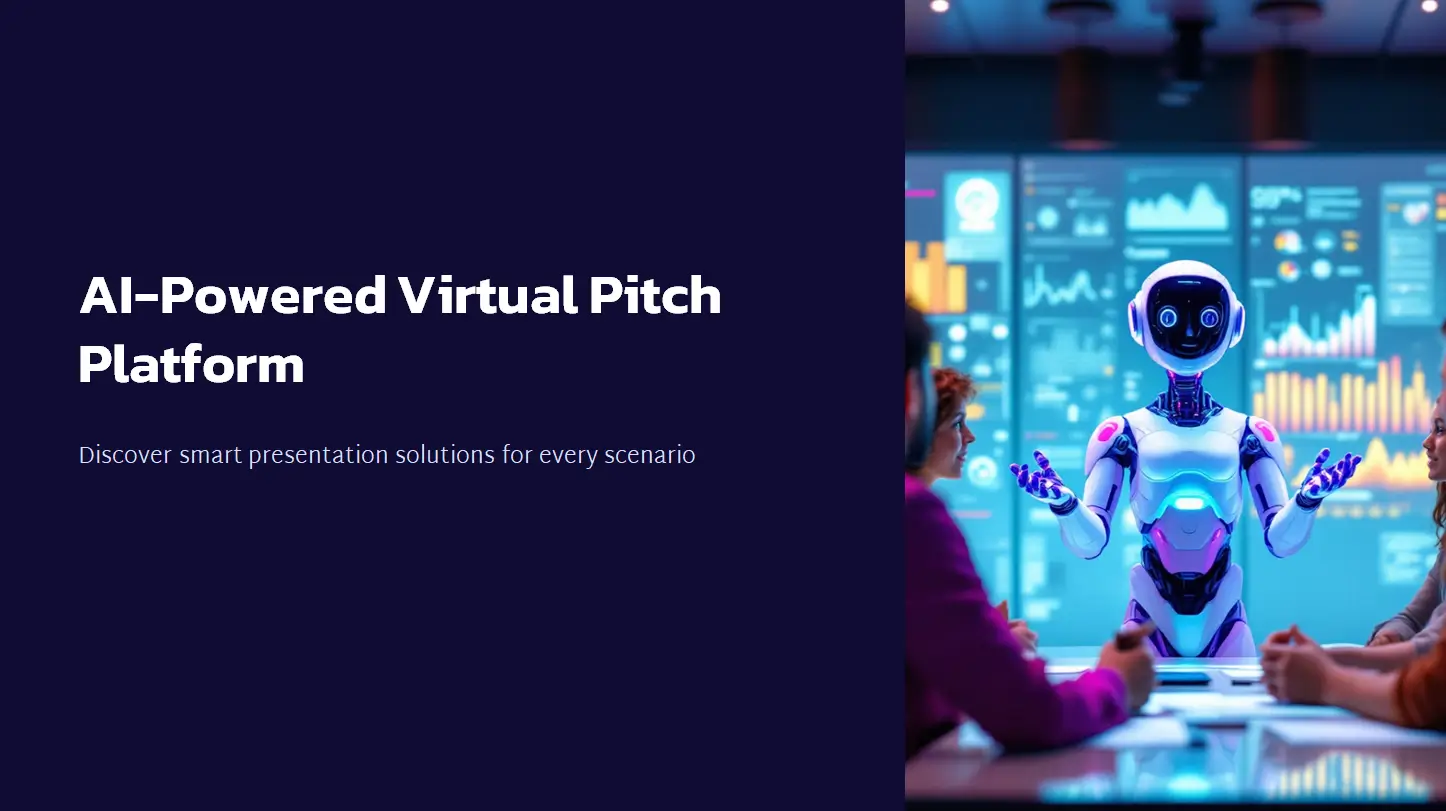
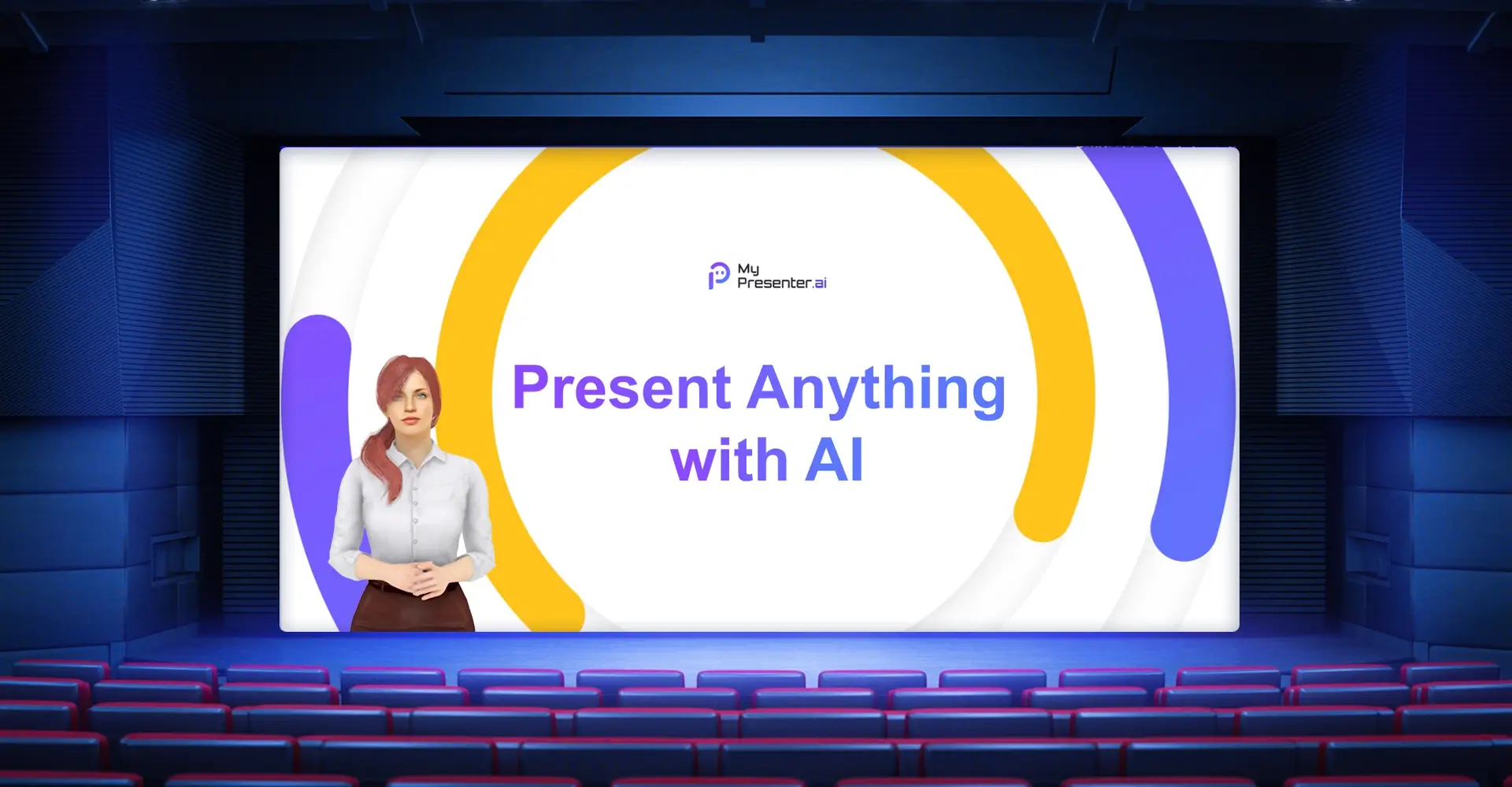
BEFORE THE TALK
Speech Copilot
Best for: Conference speakers, founders pitching investors, students defending a thesis. One talk, one date.
The only one of the four where the AI never meets your audience. It builds the rehearsal room instead. You edit the script until it sounds like you, hear a digital human read it back, and work through the questions your slides invite.
- The AI drafts narration slide by slide. Edit the script and hear the change played back immediately.
- Adjust narration speed and tone until the delivery matches how you actually talk
- Review the likely audience questions it generates from your slide content, and prepare your answers
- Export the narration, the generated Q&A, and prompt cards to review before you go on
SAME CLASS, ALL TERM
Education
Best for: School teachers, university lecturers, and course creators who teach the same syllabus more than once.
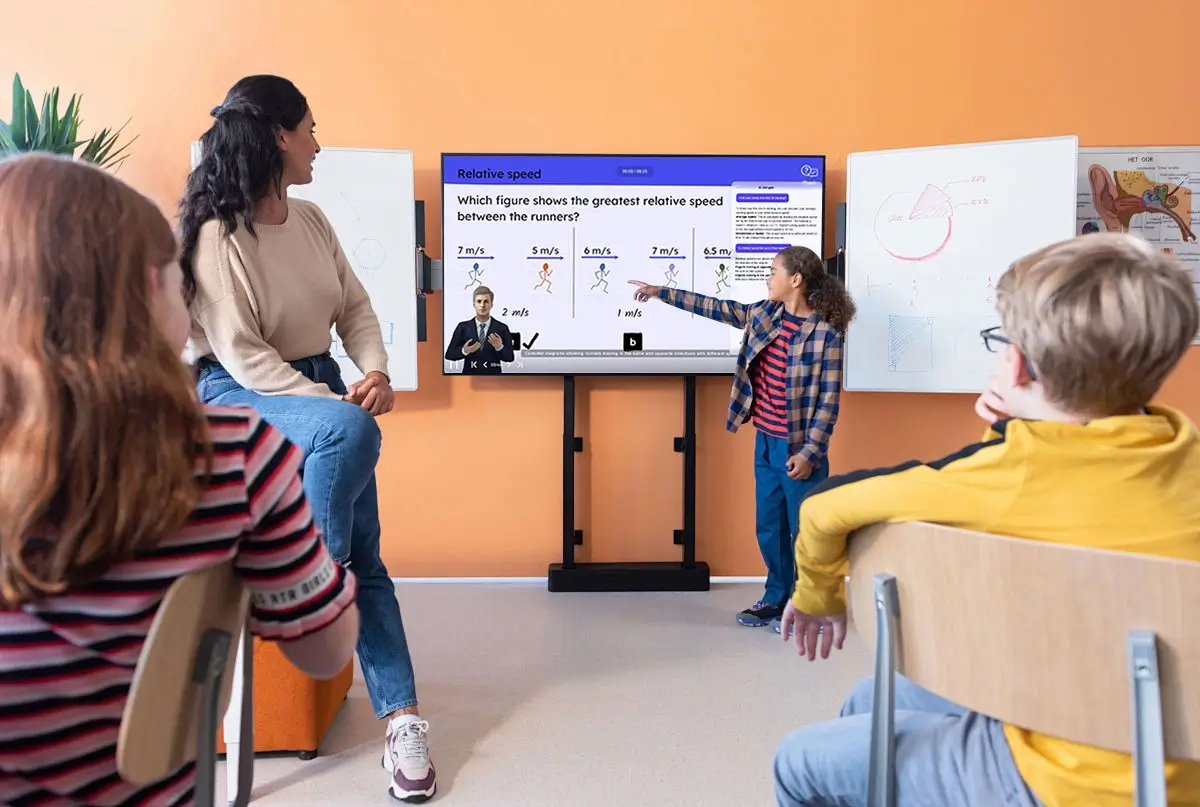
Corporate Training runs on the same machinery, but it assumes people watch once. Education is built around re-watching. The class becomes a link students return to after the bell, and the chat bar beside it catches the question they'd otherwise have saved for next week.
- You pick a digital human, and it delivers the lecture from your course PDF
- Students ask in the built-in chat bar, on the web or in the app, while the lesson is playing
- You can review the questions students asked. Progress dashboards are available as a custom engagement.
- The output is a shareable playback link, not a downloadable MP4 file
- One PDF presentation at a time. Batch upload and LMS integration are available as custom engagements.
See the teaching workflow“I created 20 course videos with MyPresenter, saving an entire semester of repetitive teaching time.”
ONE VERSION, EVERY HIRE
Corporate Training
Best for: HR and L&D teams, team leads, and anyone about to run the same onboarding session for the fourth time this quarter.
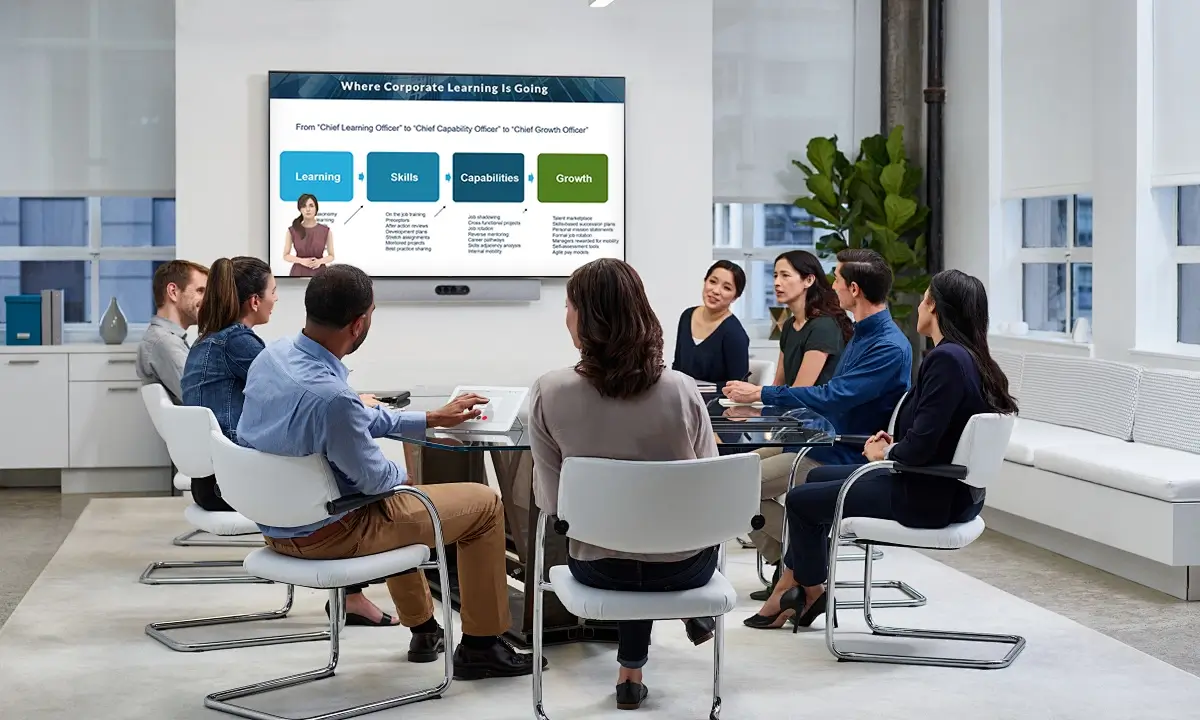
Onboarding decks, policy documents, technical SOPs, and internal knowledge shares become one narrated version that doesn't drift between trainers. A new hire starts it the week they arrive rather than waiting for the next scheduled session.
- Built around four content types: onboarding, policy and process guidelines, technical SOPs, and internal knowledge sharing
- Employees ask on the page they're stuck on; managers read the question summaries
- Link sharing is the standard route. LMS, intranet, HR system, and API integrations, completion reports, role and permission workflows, and private or on-premises hosting are all handled as custom engagements.
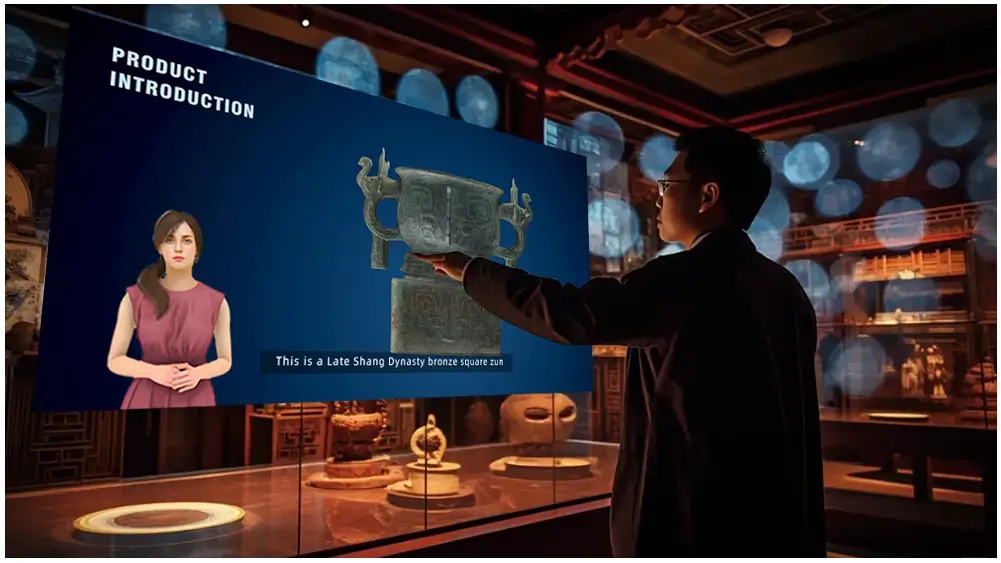
A SCREEN IN A PUBLIC SPACE
Exhibition
Best for: Trade-show teams, museum and gallery staff, showroom and visitor-center managers, and event organizers.
The other three reach people you can send a link to. Here the audience is whoever happens to walk past, so the guide has to run itself — on a screen the venue already owns, not hardware you buy for the show.
- It runs on any smart TV, kiosk, LED wall controller, or tablet with a browser. Open the playback page fullscreen and that's the installation.
- Visitors ask in 20+ languages, and the answers come only from the PDF you uploaded
- Loops unattended around the clock, long after your team goes home
- The same content can run on several screens across different venues
- Setup takes roughly 3–10 minutes from the PDF you already have — no filming required
- Ticket check-in, visitor systems, and data dashboards are available as custom engagements, confirmed case by case
Whichever one you picked, it starts with a PDF
Upload the deck you already have and see the AI-narrated version before you decide how to use it.