AI Presentation Products — and How to Choose Between Them

MyPresenter AI turns slides you already have into interactive, AI-narrated presentations that answer your audience in real time. It comes as three products. One is the base; the other two are layers you add when the content calls for them.

Below you'll find what each one does, what you have to bring to it, and two workflows that use all three together.

Which MyPresenter AI product fits your presentation?

The fastest way to tell them apart is by what you have to supply and what comes back out. Scroll the table sideways on a phone.

DecisionInteractive Slide ShowReal-Time Interactive 3D AvatarMedia Library
What it doesTurns a slide deck into a presentation that narrates itself and answers your audience live.Builds a 3D digital human that presents on screen and lip-syncs in real time as it speaks.Times your own images, videos, and 3D models to the exact words of the narration.
What you bringA PDF of your slides. Export from PowerPoint or Keynote first.One front-facing photo. No video, no equipment, no modeling skills.JPG or PNG images, MP4, MOV, or WebM video, or an OBJ model with a JPG/PNG texture.
What the AI producesEditable per-slide narration plus a Q&A knowledge base built from your own file.A 3D digital human in about 15 seconds, with hairstyle and clothing you can change and save.Nothing is generated. Your assets stay as they are, and you decide when each one appears.
Language & voiceNarration can be edited and regenerated in 20+ languages, with multiple voices and emotions.Presents and responds in multiple languages, lip-synced as it talks.Language-independent. Timing is anchored to the words in whichever narration you chose.
Typical jobCourses, product and business-plan introductions, and online training that runs without you.Sessions where you want a consistent, recognizable presenter — and where a photoreal 2D clone would be a risk.Explanations where the slide alone is not enough: a product shot, a chart, a rotatable model.
Can it stand alone?Yes. This is the base product — the other two plug into it.It is picked inside a presentation (step 3 of the slide-show workflow) and then delivers your slides.No. Assets live on slides and are triggered by the narration reading them out.
MyPresenter AI presenting an interactive slide show with live audience Q&A

Interactive Slide Show

Start here if your deck is done and you want it to explain itself.

Upload a PDF of your finished deck. MyPresenter AI reads every page, writes the narration slide by slide, and builds a Q&A knowledge base out of that same file. The narration stays editable page by page, so you can make the wording sound like you. Regenerate it in 20+ languages, with a choice of voices and emotions.

Open the link and a digital presenter delivers the slides, fielding questions as they arrive. Answers are drawn from the document you uploaded and nothing outside it. You can also set page-level questions, write reference answers, and mark questions as required.

When the content changes, you edit the narration, knowledge base, media, or Q&A and republish. Nothing has to be re-recorded.

  • Input: a PDF (export PowerPoint or Keynote to PDF first)
  • Narration and knowledge base generated from your own file
  • Page-level Q&A with reference answers and required questions
  • Shared as a web link, with no app for your audience
See how the Interactive Slide Show works
Animated 3D avatar presenting and lip-syncing in real time in MyPresenter AI

Real-Time Interactive 3D Avatar

Add this when you want the presenter to look like you.

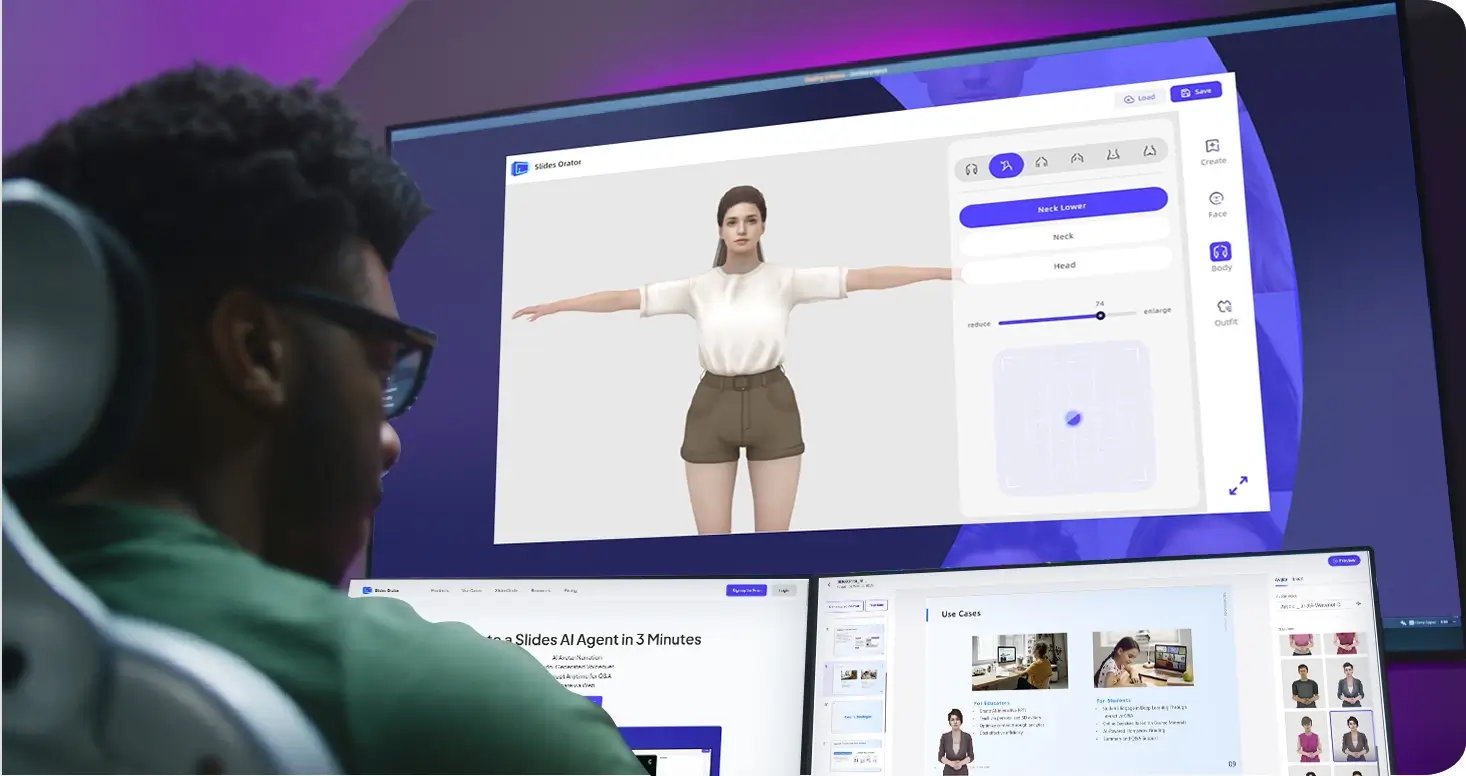
Upload one front-facing photo. About 15 seconds later you have a 3D digital human built from it: no video, no equipment, no modeling skills. From there you pick the hairstyle and clothing, adjust the appearance until it looks right, and save it for future presentations.

During a presentation the avatar is paired with a large language model. It explains your content, answers questions, and collects feedback live, lip-syncing in real time as it speaks and responding in multiple languages.

It's a 3D character on purpose, not a photoreal 2D clone. Someone can rewrite a lifelike 2D clone's script and make it say things you never said. A 3D avatar keeps the line between the technology and a real person visible. And if you would rather not use your own likeness at all, there are 100+ ready-made digital human models to present with.

See how the 3D avatar is built
Uploading images, video, and 3D models to the MyPresenter AI media library

Media Library

Add this when the slide itself cannot show what the narration is describing.

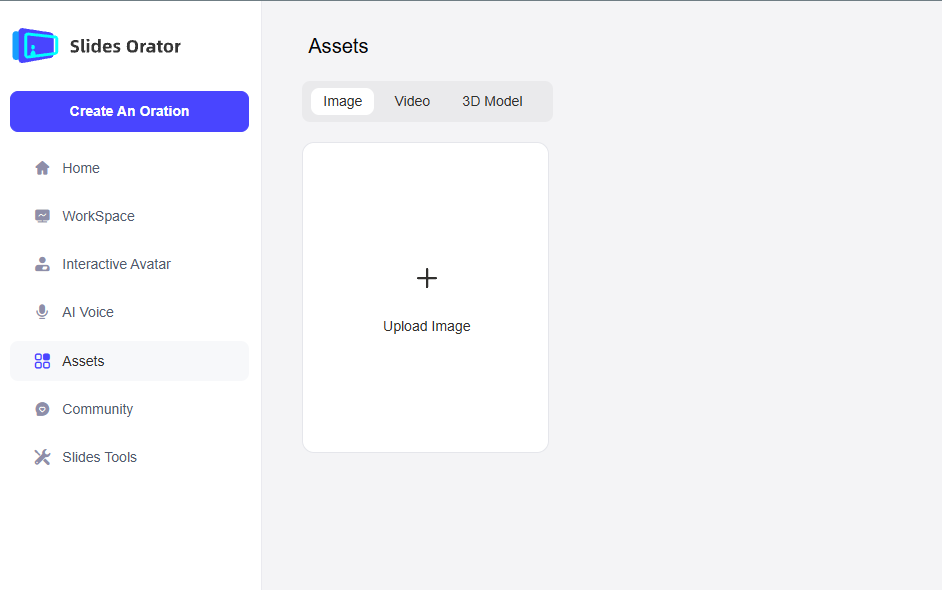
The Media Library is a private asset store on your account, sorted automatically by media type. What separates it from dropping a picture onto a slide is the timing. You select a range of words in the narration and drag to set the interval, and the asset appears exactly when the presenter reaches those words. You can pin it to a single word, mid-sentence if that's where it belongs.

Drag an asset anywhere on a slide and it auto-fits to the display zone. You can stack or sequence several on one slide, and they work with a digital presenter on screen or with voiceover only. Everything stays private to your account; shared team libraries are not available yet.

  • Images (JPG, PNG), video (MP4, MOV, WebM), 3D models (OBJ with a JPG or PNG texture)
  • OBJ up to 50MB, texture up to 20MB
See how media timing works

How the three products work together

In practice you rarely use only one. Here are the two setups people build most often:

A course that keeps teaching after you log off

  1. 1Export the lecture deck to PDF and upload it. Narration for every page and a Q&A knowledge base come back, both built from that one file.
  2. 2Edit the pages where the wording matters, then regenerate the narration in a second language for students who need it.
  3. 3Create a 3D avatar from your own photo so the class sees the same instructor every week, styled once and reused.
  4. 4Drop the diagram or the 3D model that is missing from the slide into the Media Library and pin it to the sentence that explains it.
  5. 5Share the link. Students watch, ask their own questions, and get answers taken from your material.
Interactive Slide Show3D AvatarMedia Library

A product introduction that runs while you're in other meetings

  1. 1Upload the product PDF you already send to prospects. The knowledge base is built from it, so answers stay inside what you published.
  2. 2Load the product photos and the OBJ model into the Media Library and pin each one to the word where it should appear on screen.
  3. 3Pick a presenter: a ready-made digital human, or a 3D avatar of the person who normally gives this pitch.
  4. 4Send the link. The presentation makes the pitch and handles the parts you didn't spell out on the slides. What people ask comes back to you as feedback on the product.
Interactive Slide ShowMedia Library3D Avatar

What changes between plans

Plans are not sold per product. What changes from plan to plan is how much material you can process and whether you can build your own presenter.

Free

Up to 3 documents, each up to 15 pages. It includes everything on the generation side: narration, editing, translation, AI dialogue, subtitle translation, speech synthesis, and AI avatar animation. Customizable characters aren't included, so you present with the ready-made digital humans.

Pro and Premium

Unlimited documents and unlimited pages, the same narration and interaction features, plus customizable characters — which is what a 3D avatar of your own face needs. Credit allowances differ by plan.

Choosing between the products: FAQ

Still weighing tools? MyPresenter AI vs Synthesia and the rest of the comparisons and guides go through the alternatives one by one.

Start with your finished deck

Upload a PDF, let MyPresenter AI narrate it and answer your audience, then add an avatar and timed media when you need them. Free to try.