SlidesOrator is now MyPresenter AI
SlidesOrator has a new name: MyPresenter AI. You can still use the same kind of workflow to turn PDF slides into an AI-narrated, interactive presentation — upload your PDF, let AI prepare the narration, choose a presenter, and share a playback link with your audience.
Existing SlidesOrator users can continue using the current MyPresenter AI product workspace.
A new name for a clearer product
SlidesOrator has been renamed to MyPresenter AI. The new name better explains what the product helps you create: presentations that can speak, guide viewers, and answer questions. It is no longer only about reading slides aloud — MyPresenter AI helps turn your slide content into a shareable experience.
With MyPresenter AI, you can:
- Upload PDF slides
- Generate narration for each page
- Edit the narration before publishing
- Choose an AI presenter and voice
- Build a knowledge base from your content
- Let viewers ask questions
- Share the final presentation as a playback link
Your presentation workflow still feels familiar
If you used SlidesOrator before, the core idea is the same: your slides become easier to explain and easier to share.
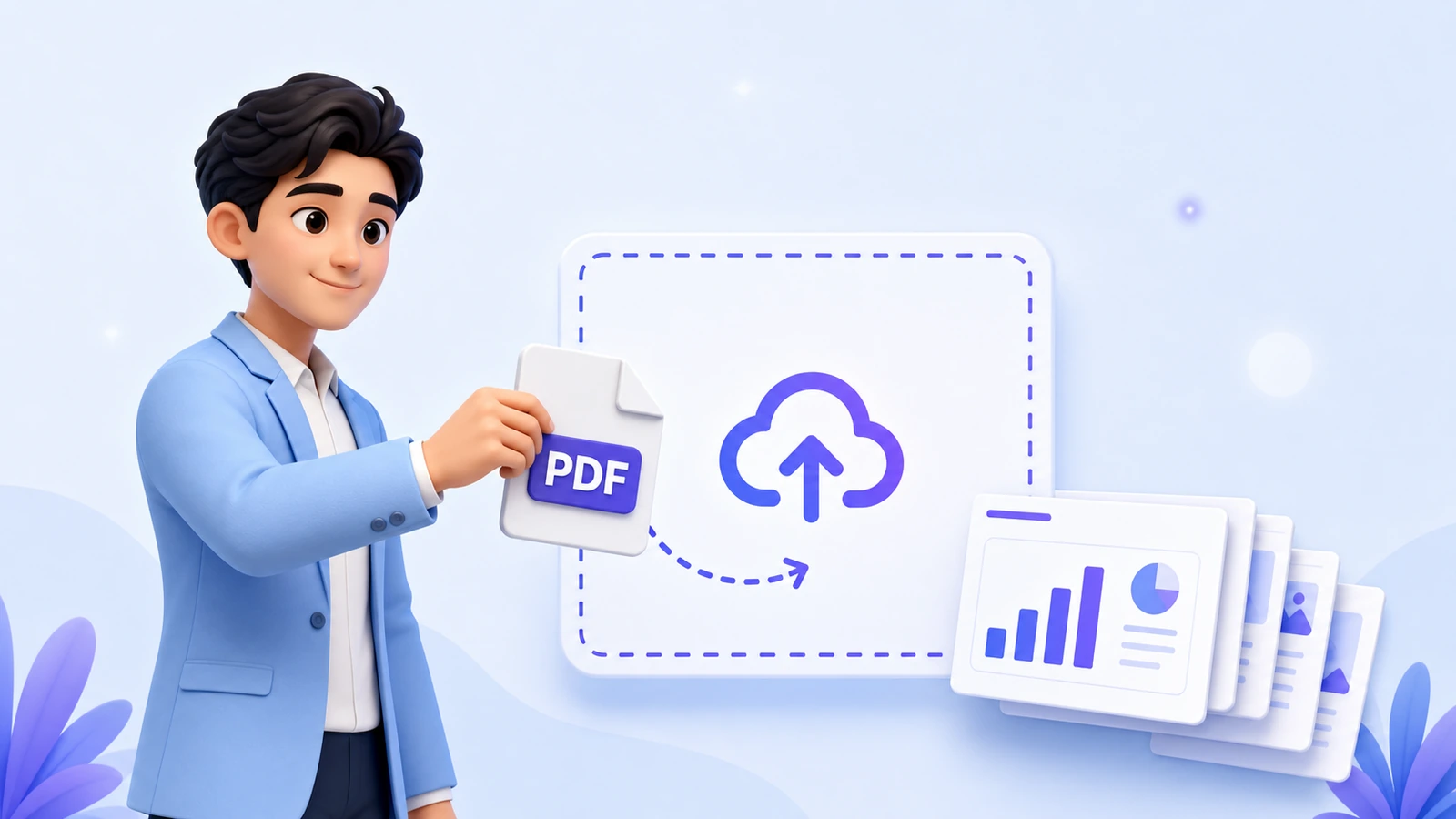
Upload your PDF slides
Start with a PDF version of your slide deck. MyPresenter AI reads the content page by page.
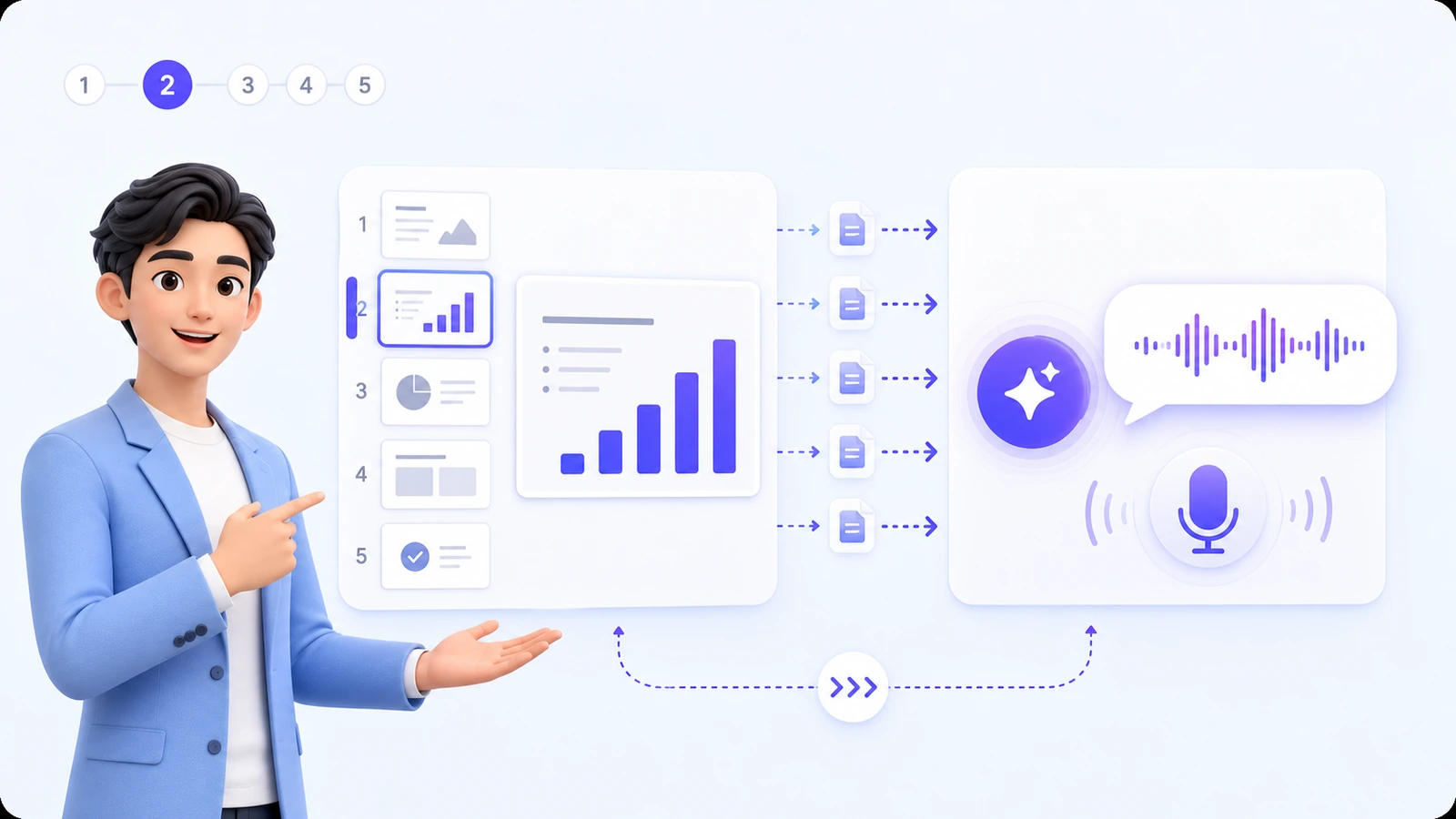
Generate page-by-page narration
AI prepares a draft explanation for each page, so you do not need to record everything from scratch.
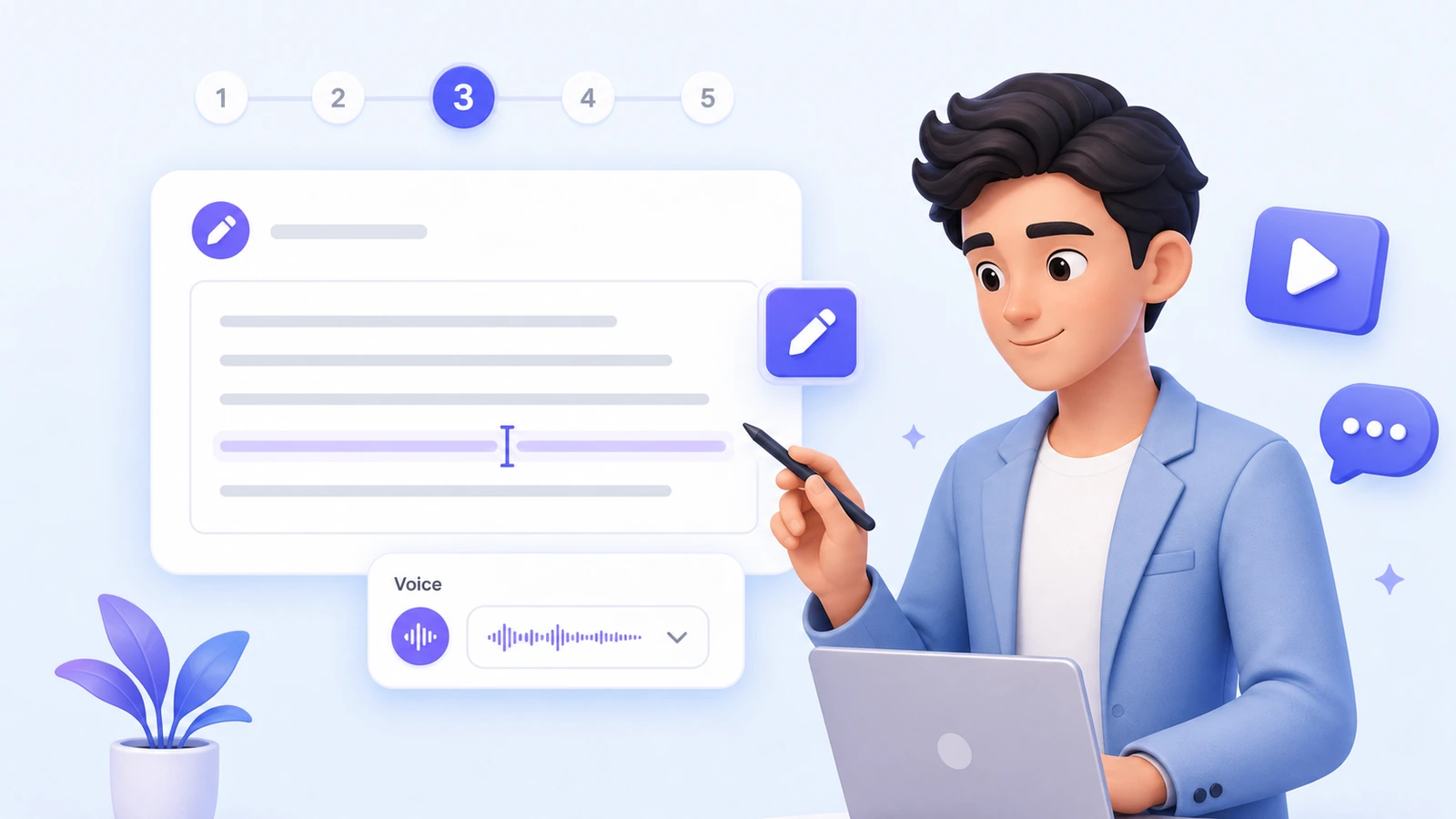
Edit before you publish
Adjust the wording, style, and voice so the presentation sounds closer to how you would explain it.
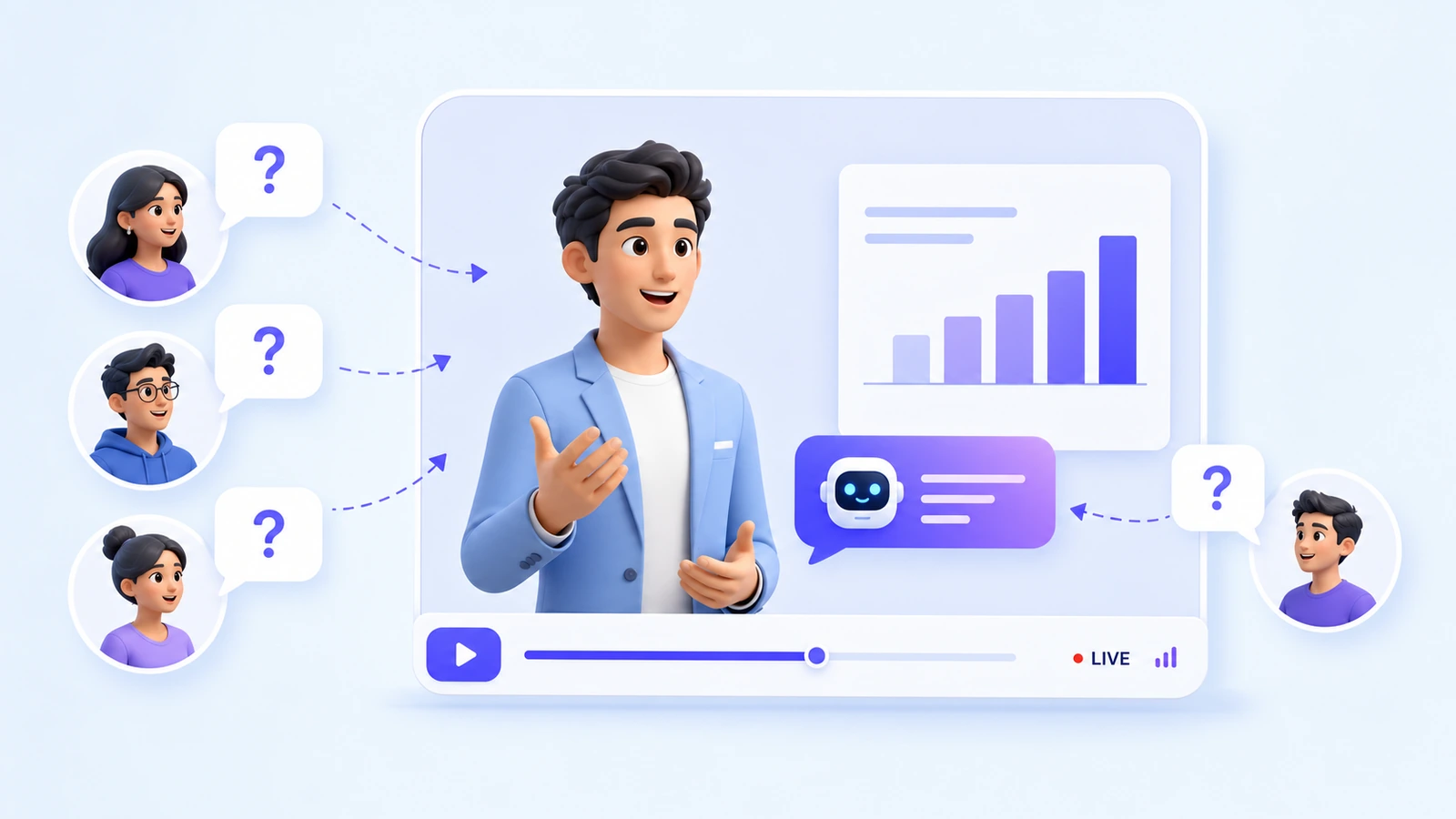
Let viewers ask questions
Viewers can ask questions while watching. Answers are based on the content you uploaded.

Share with a link
When the presentation is ready, publish it and share a playback link with your audience.
Your account and data
Same login, same presentations, same avatars and media assets. Nothing was reset or lost in the rename.
PDF-first workflow
Upload your slides as a PDF and turn them into an AI-narrated, interactive presentation, exactly as before.
Q&A and shareable links
Audiences can still ask questions during playback, and you still share your presentation through a single link.
From slide narration to interactive AI presentations
SlidesOrator was a good name when the product was mainly about helping slides speak. MyPresenter AI is a better name for what the product does now: it helps create a full presentation experience with AI narration, digital presenters, audience Q&A, and media support.
The goal is still simple — help people explain slides more clearly, without repeating the same presentation again and again.
- 🎤Interactive slide show
- 🧑🚀Real-time interactive 3D avatar
- 🖼️Media library
How to sign in
If you used SlidesOrator before, you can continue by signing in through the current MyPresenter AI product entry. If your school, company, or organization gave you a specific access link, use that link first. If you are not sure where to sign in, contact MyPresenter AI support.
Create presentations that explain themselves
MyPresenter AI helps you create presentations that can be watched, replayed, and questioned by viewers.
Interactive slide show
Upload your PDF slides and let an AI presenter narrate them and answer your audience’s questions in real time.
Interactive slide showReal-time interactive 3D avatar
Pair your presentation with a 3D digital human that lip-syncs, speaks multiple languages, and engages your audience live.
Real-time interactive 3D avatarMedia library
Bring in images, videos, and uploaded 3D media assets to make your interactive presentation more engaging.
Media libraryCore features
- AI-generated narration for PDF slides
- Editable scripts
- Digital human presenters
- Voice and language options
- Knowledge-based Q&A
- Page-level questions
- Media assets such as images, videos, and 3D models
- Shareable playback links
Compare plans on the pricing page.
Can I use PowerPoint slides?
Yes, but the core upload flow uses PDF slides. If your presentation is in PowerPoint, export your PowerPoint as a PDF first, then upload the PDF to MyPresenter AI.
Frequently Asked Questions
Need a hand with the move?
Find guides in the Help Center, or reach out and our team will help you get back into your account.