AI Presentation for Corporate Training: Turn Existing Slides into Interactive Training#

AI can help corporate training teams get more use from the slide decks already sitting in shared drives, onboarding folders, and SOP libraries. Instead of rebuilding every onboarding deck or product training presentation, teams can add clearer narration, guided questions, and a review path employees can return to after the live session.
That does not mean handing training quality over to software. A good AI presentation for corporate training still needs accurate source material, human review, and a clear owner. The useful change is more practical: take the deck your team already trusts, make the explanation easier to follow, and give employees a more interactive way to revisit it.
For teams that work from PDF training decks, MyPresenter AI can fit into that workflow by turning PDF slides into AI-narrated interactive presentations with editable page-level narration and Q&A.
Why Traditional Corporate Training Presentations Are Hard to Scale#

Most training teams are not starting from a blank page. They usually have years of material stored in slides:
- employee onboarding decks
- product training presentations
- compliance or policy walkthroughs
- SOP and process training
- sales enablement material
- internal knowledge-sharing sessions
The hard part is not always creating more content. It is delivering the same explanation clearly when every manager, trainer, and new hire enters the process at a different point.
A live trainer can explain context, answer questions, and adjust the pace. A static deck cannot. After the session, employees may only have the slides, a recording, or a document that does not fully explain what each page meant in the actual workflow.
That creates familiar training problems:
- new employees hear inconsistent explanations depending on who trains them
- managers repeat the same walkthroughs many times
- employees cannot easily review one confusing slide later
- trainers need to answer recurring questions after each session
- old decks become hard to update because the explanation lives in someone's memory
AI presentation tools are useful when they focus on this practical gap: making existing training slides easier to explain, review, and reuse.
Where AI Can Help Corporate Training Presentations#
AI is most useful in corporate training when it supports the training workflow instead of pretending to replace it.
Turn Slides Into Narrated Training Material#
Training decks often rely on a speaker to explain what each page means. AI narration can turn that spoken explanation into a reusable layer of training content.
A product onboarding deck may already include screenshots, feature summaries, and process diagrams. An AI presentation tool can help create a slide-by-slide explanation so employees can review the material after the trainer has moved on to the next cohort.
The narration still needs review. Product details, policy language, compliance wording, and internal terminology should be checked by the training owner before anyone shares the presentation.
Add Guided Questions to Important Slides#
Training requires more than watching content. Employees often need to check whether they understood a process, policy, or product flow.
Page-level questions can make a passive deck more active. A training manager might add a question after a key SOP step, a product feature explanation, or a safety policy slide, right where employees usually pause or ask for clarification.
That is where an interactive training presentation becomes more useful than a static deck. The question stays tied to the slide where the employee needs context.
Support Self-Paced Review After Live Training#
Live sessions still matter, especially for complex topics. Employees still need a way to revisit the material afterward.
AI-narrated slides can give them a more structured review path than opening a PDF and guessing what the trainer meant. The presentation can explain each slide, surface likely questions, and let employees return to the sections tied to their role or task.
Keep Training Knowledge Easier to Update#
Training content changes. Products evolve, processes shift, and internal policies get updated.
If the explanation lives only in a recording or in a trainer's head, updates become slow. If the explanation is editable per slide, the team can revise a specific page, adjust the narration, update the related Q&A, and republish the training material.
A Practical Workflow for Turning Slides Into Interactive AI Training#
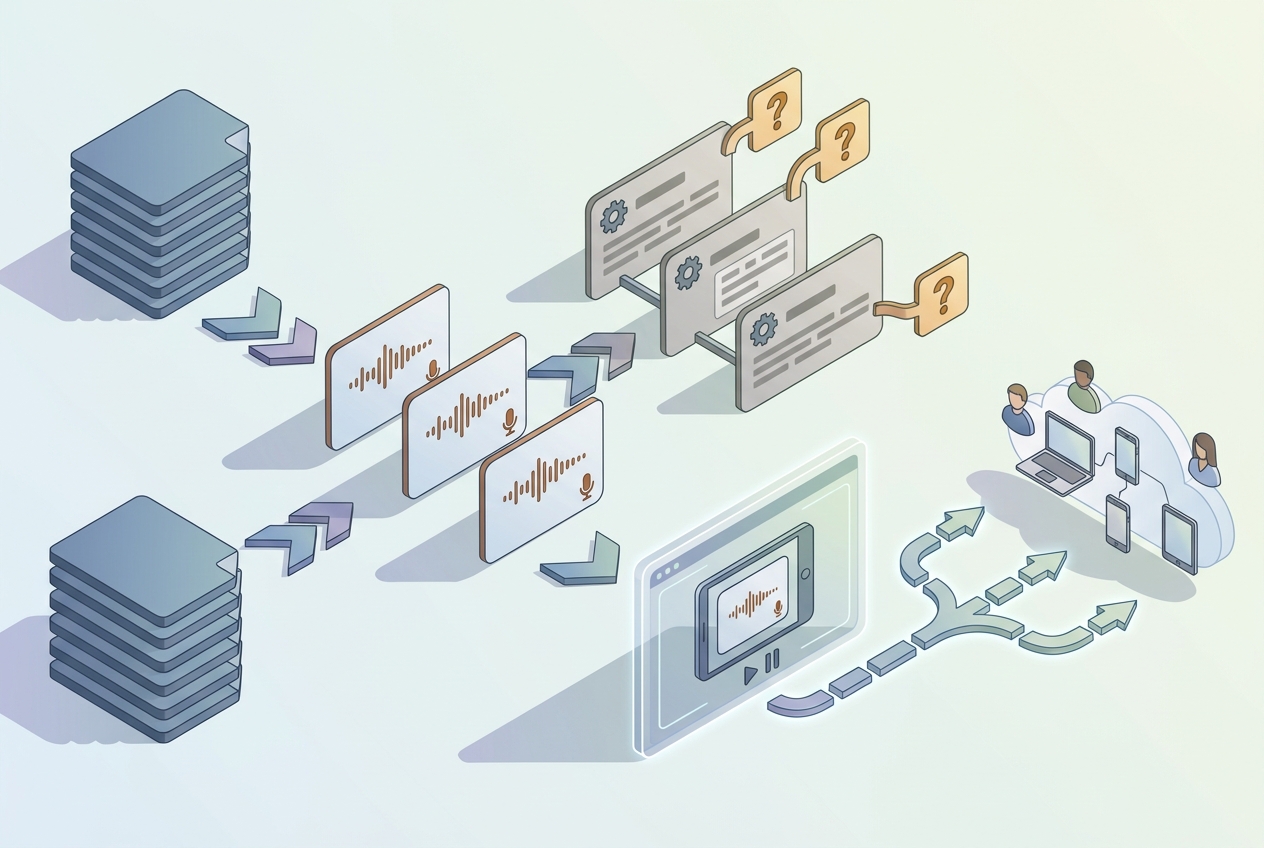
The best starting point is not a vague prompt. It is a real training deck that already represents what the team needs to teach.
1. Choose a Training Deck With a Clear Use Case#
Start with one deck that training teams already repeat often. Good candidates include:
- new employee onboarding
- product feature training
- SOP walkthroughs
- customer support process training
- internal tool training
- sales demo preparation
Avoid starting with a deck that is outdated, too broad, or missing key source material. AI can help explain training content, but it should not fill gaps the training owner has not verified.
2. Convert the Deck Into an AI-Narrated Presentation#
If the training material is already in PDF form, upload the PDF slides into a tool that supports slide-based narration.
In MyPresenter AI, teams can use the interactive AI presentation workflow to turn PDF slides into an AI-narrated presentation. The slides remain the structure of the training. The AI layer helps explain them.
3. Review and Edit the Narration Page by Page#
Do not treat the first narration draft as final. It is a working version for the training owner to review.
Review each slide the way an employee would hear it:
- Is the explanation accurate?
- Does it match our internal terminology?
- Does it avoid unsupported promises?
- Is it clear enough for a new employee?
- Does it explain why the slide matters?
MyPresenter AI supports editable per-page narration, so the training owner can adjust the explanation without regenerating the whole presentation each time.
4. Add Q&A Where Employees Usually Get Stuck#
Not every slide needs a question. Use Q&A where it helps the learner check understanding before moving to the next step.
Useful places include:
- after a process diagram
- after a policy explanation
- after a product workflow
- after a troubleshooting step
- before a final review section
MyPresenter AI supports page-level Q&A with reference answers and required-question settings. That makes it useful for guided checks inside a training presentation. It should not be described as a full LMS, grading platform, or completion reporting system unless those capabilities are separately confirmed for a specific enterprise setup.
5. Preview Before Sharing#
Before sharing the training presentation, preview it as an employee would experience it.
Check whether:
- the sequence makes sense
- the narration matches the slide content
- important terms are explained clearly
- Q&A appears in the right places
- the call to action or next step is clear
This review step matters because training content often carries operational risk. A small wording error in a policy, compliance, or product workflow deck can send employees down the wrong path.
6. Share the Presentation and Collect Feedback Manually#
Once the presentation is reviewed, share it with the intended audience.
For early use, collect feedback manually from trainers, managers, or the first employee group that uses the presentation:
- Which slides were unclear?
- Which questions did employees miss?
- Which sections needed trainer follow-up?
- Which explanations should be shortened or expanded?
Use that feedback to improve the next version of the training deck and narration, especially the slides that trigger repeated questions.
What to Check Before Choosing an AI Presentation Tool for Training#
If you are evaluating an AI presentation tool for corporate training, look past broad AI claims. Focus on the workflow your training team actually needs.
Does It Work With Existing Training Material?#
Many teams already have decks. A useful tool should support the format those teams actually use.
For MyPresenter AI, the confirmed base presentation upload path is PDF slides. Do not plan around PPT upload unless the product documentation or team has confirmed that support for your use case.
Can You Edit the Narration?#
Training explanations need review and revision. A tool that generates narration but does not let the training owner refine it may create extra work instead of reducing it.
Editable narration matters because corporate training often includes product names, internal process terms, and policy language that need to be precise.
Can You Add Questions at the Right Point?#
Questions are more useful when they are connected to the slide they test.
For training, page-level Q&A is often more practical than a generic quiz at the end. It lets the learner check understanding while the context is still visible.
Is There a Clear Human Review Step?#
AI should not be the final reviewer for employee training.
The tool should let a responsible person preview the presentation, edit content, and confirm that the material is accurate before employees use it.
Does the Tool Avoid Overpromising Enterprise Features?#
Some training teams need LMS integration, HR system sync, completion reports, SSO, APIs, analytics, or compliance workflows. Those are separate requirements.
If your organization needs them, confirm them directly before choosing a tool. Do not assume every AI presentation product includes those capabilities by default.
Where MyPresenter AI Fits#

MyPresenter AI is a good fit when the training team's starting point is an existing PDF deck and the goal is to make that deck easier to explain, reuse, and interact with.
The strongest fit is a training workflow like this:
- Upload PDF training slides.
- Generate AI narration for the presentation.
- Edit narration page by page.
- Add page-level Q&A where learners need checks.
- Use a knowledge base to support the presentation context.
- Preview the result before sharing.
- Share the interactive presentation with employees.
This is different from using AI only to generate a new deck from a prompt. For many corporate training teams, the value is not starting over. It is improving the material they already trust and already maintain.
MyPresenter AI can be positioned for employee onboarding, SOP delivery, and training Q&A. For enterprise needs such as analytics, completion reports, LMS or HR integration, SSO, API access, or customized reporting, treat those as items to confirm with the team rather than standard assumptions.
Limits Training Teams Should Keep in Mind#
AI presentation tools are useful, but they do not remove the need for training ownership.
Before using AI-generated narration or Q&A in corporate training, check these boundaries:
- Do not publish training material without human review.
- Do not let AI invent policy, compliance, or product details.
- Do not claim measurable training improvement unless you have real internal data.
- Do not assume completion tracking or analytics unless the product setup includes it.
- Do not use unsupported file formats in the workflow.
- Do not treat a narrated presentation as a full learning management system.
Start with a focused training use case, test the workflow with one deck, gather feedback, and improve the material over time.
FAQ#
What is an AI presentation for corporate training?#
An AI presentation for corporate training uses AI to explain, narrate, structure, or make training slides more interactive. In a practical workflow, it can turn existing slides into narrated training material and add guided questions for employee review.
Can AI help reuse existing training slides?#
Yes, if the tool supports the format your team already uses. For MyPresenter AI, the confirmed workflow starts with PDF slides. The tool can help create AI-narrated interactive presentations from those slides, and the narration can be edited page by page.
Can employees answer questions inside an AI training presentation?#
With MyPresenter AI, training teams can add page-level Q&A with reference answers and required-question settings. This is useful for guided checks, but it should not be described as a full LMS, grading system, or completion reporting platform unless those capabilities are separately confirmed.
Is an AI presentation tool the same as an LMS?#
No. An AI presentation tool helps create or deliver interactive training content. An LMS usually manages enrollment, course tracking, completion records, reporting, and administrative workflows. If your team needs LMS features, confirm integration and reporting requirements separately.
Does MyPresenter AI support PPT upload?#
For the base presentation upload path, the confirmed writing boundary is PDF slides. Do not assume PPT upload unless MyPresenter AI later confirms it for the specific workflow you plan to use.
CTA#
You do not need a new deck to start. Pick one PDF your team uses often, add narration, drop a few questions on the pages people get stuck on, preview it, and share it. One deck is enough to tell whether this fits how your team trains.
Sign in to turn that first deck into an AI-narrated interactive presentation.
If you want to read more first, see MyPresenter AI for corporate training or the interactive AI presentation workflow.